


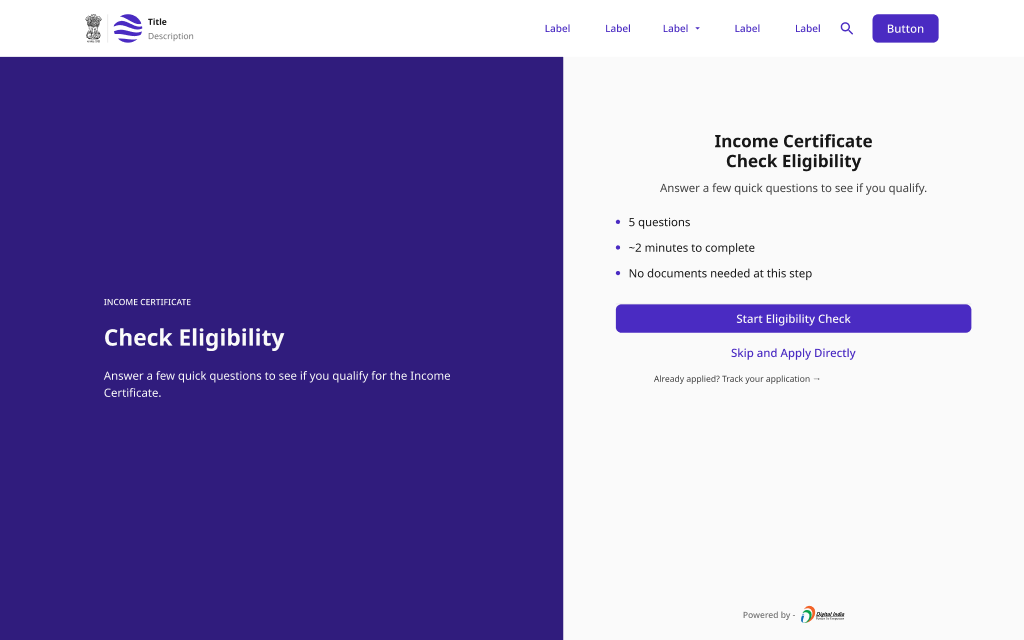
Eligibility Check Wizard
A single-question-per-screen wizard that screens citizens for scheme eligibility before they invest time in a full application. Ends in an eligible, not-eligible, or conditional result.
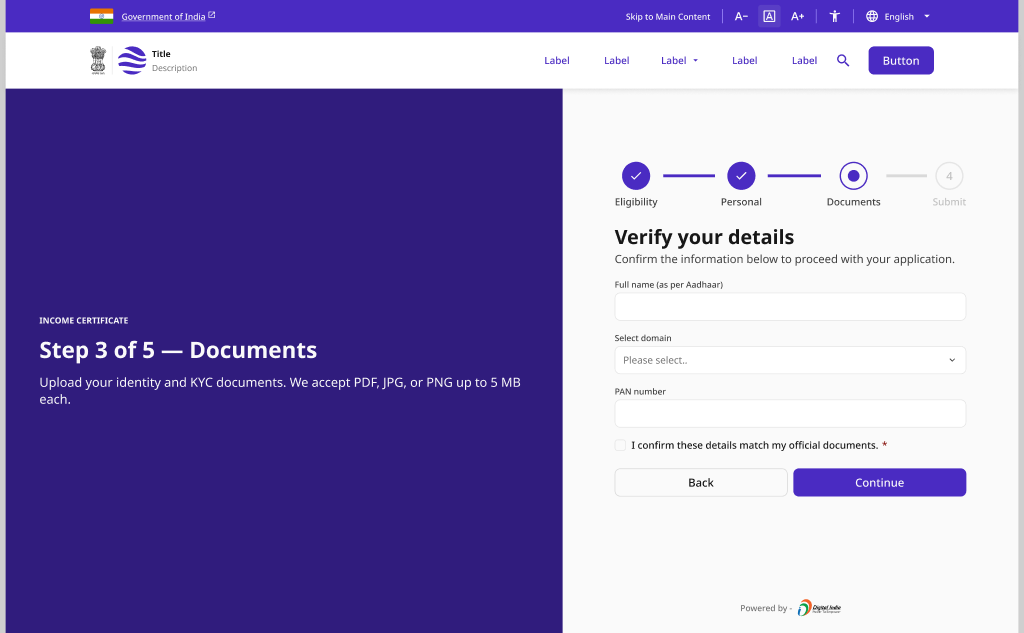
Journey Progress Indicator
A persistent multi-step progress indicator that orients citizens within a long application, supports resuming, and surfaces step-level errors.
Government Form with Validation
The core application form with inline validation, an on-submit error summary, and a confirmed success state.
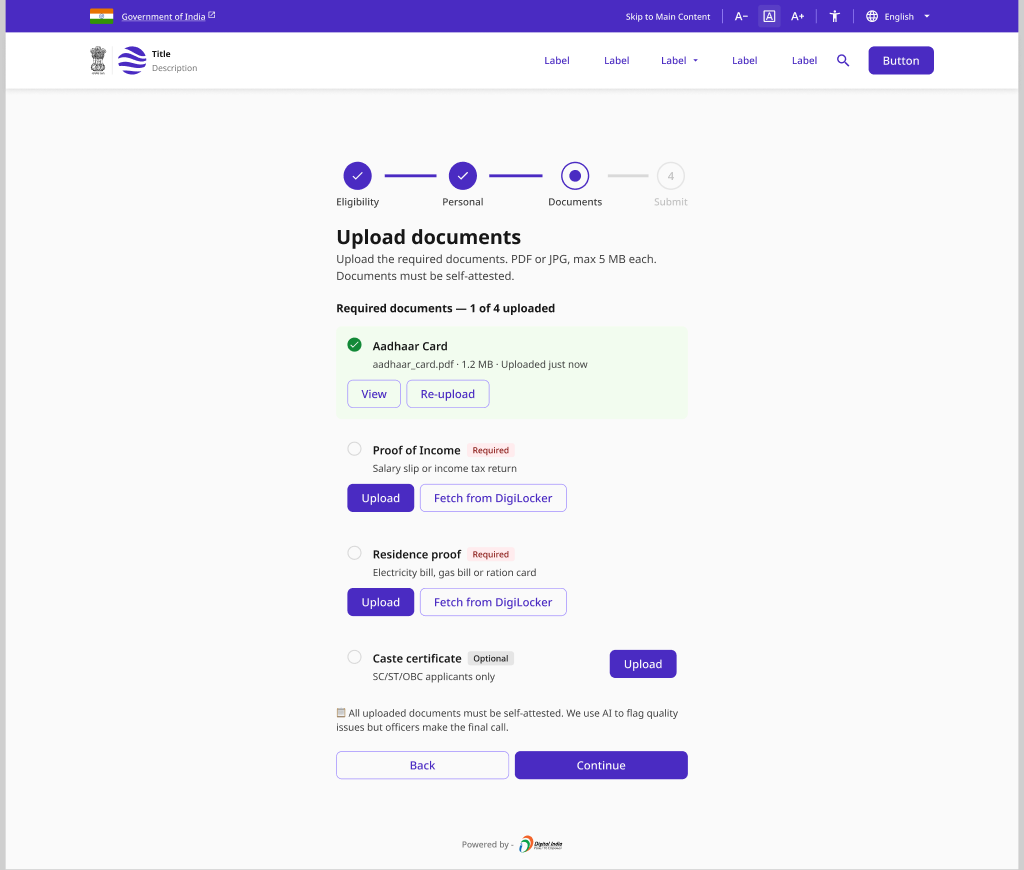
Document Scan and Upload
A guided document checklist with upload progress and an AI quality flag that catches blurry or incorrect scans before submission.
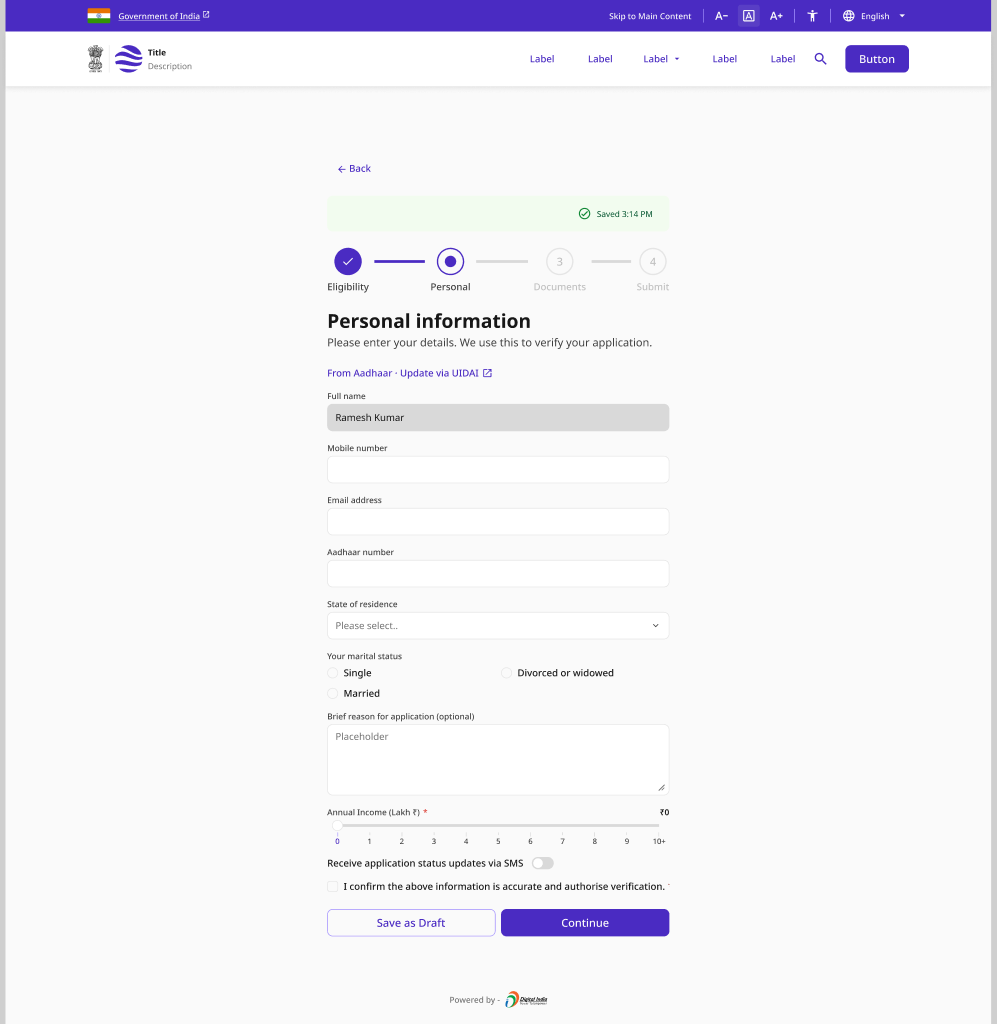
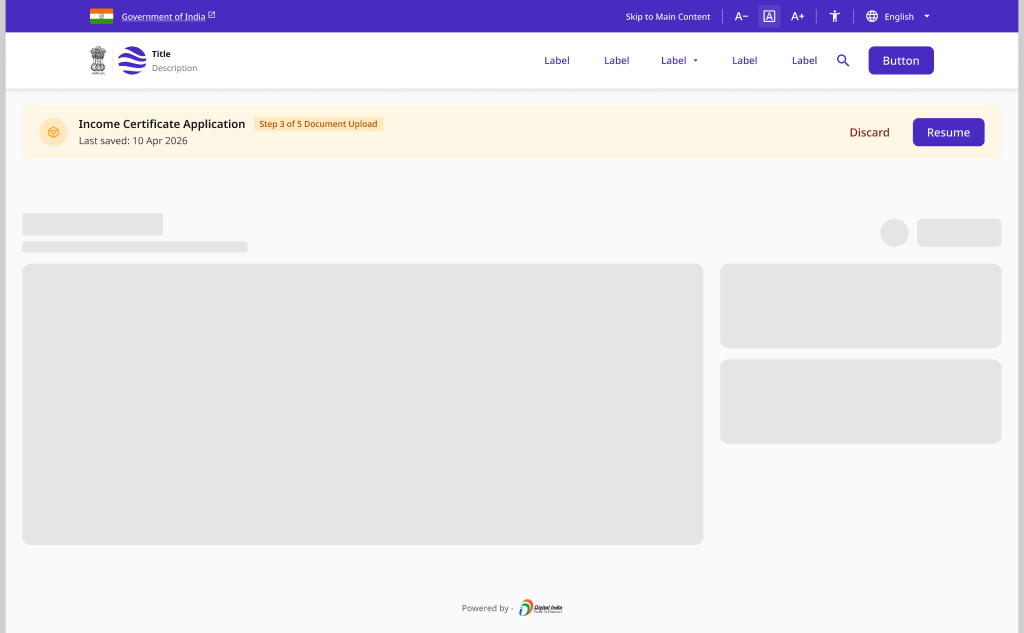
Save and Resume
Draft autosave, resume entry points, draft-expiry warnings, and unsaved-changes protection so citizens never lose progress on a long form.
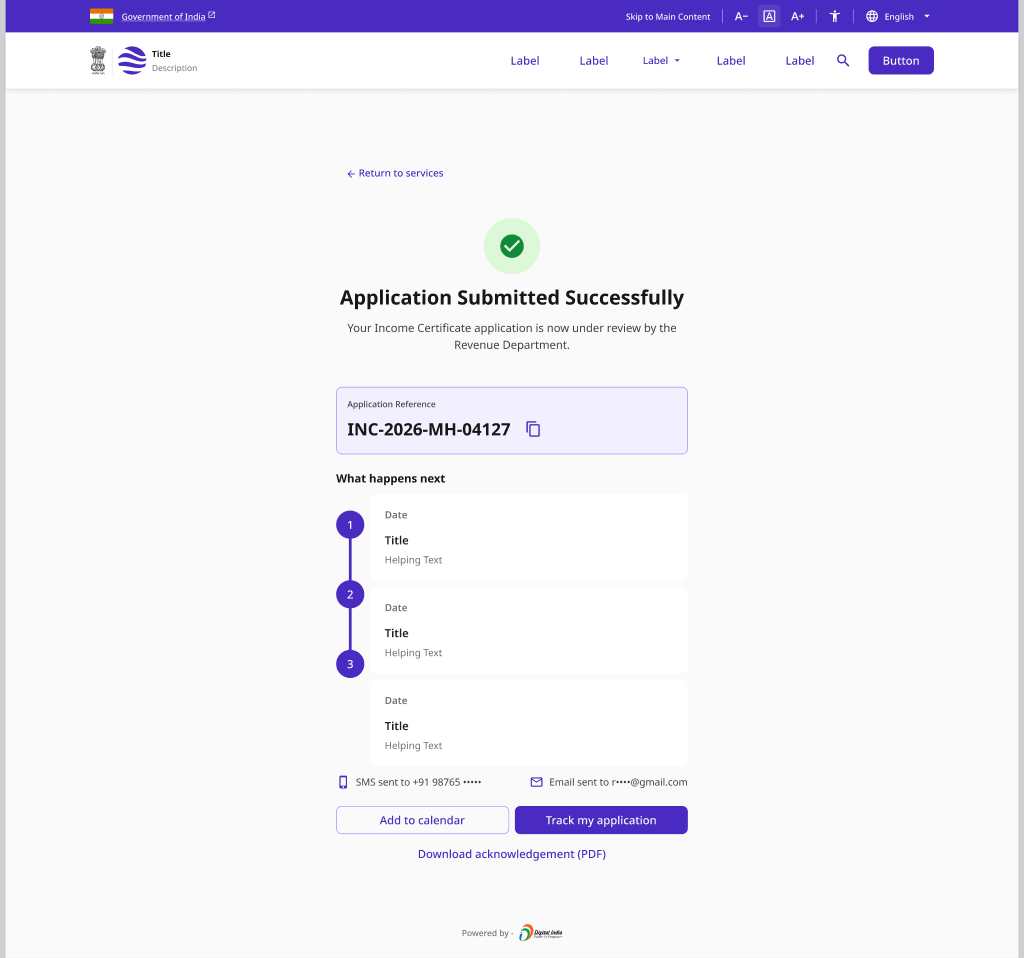
Submission Acknowledgement
A clear confirmation of a submitted application with a reference number, plus queued and error variants for asynchronous or failed submissions.
Pattern Overview
Purpose
Help citizens complete a government application with confidence - screening eligibility early, guiding document upload, and never losing progress.
- Screen eligibility before a full application
- Break long forms into a clear, resumable journey
- Validate inputs and documents before submission
- Confirm submission with a trackable reference number
When to Use
- A service requires a multi-step application or form
- Applicants must meet eligibility criteria first
- Supporting documents must be uploaded and verified
- Applications may be completed across multiple sessions
When NOT to Use
- A single-field lookup or status check (no application)
- Fully automated / no-form eligibility (use a status pattern)
- Payment-only flows (use Payment & Transactions)
Primary User Goals
- Know if I'm eligible before I start
- Understand how far along I am and what's left
- Upload the right documents without rejection
- Save and come back without losing my work
- Get a confirmation I can track later
Accessibility Requirements
Every screen in this group is built to meet WCAG 2.1 Level AA — keyboard operable, screen-reader friendly, and resilient for low-bandwidth and assistive-tech users.
Forms and Labels
- Every field has a visible <label> with for/id association
- Required fields marked with * and aria-required="true"
- Inline errors linked to fields via aria-describedby
- One primary question per screen in the eligibility wizard
Progress and Navigation
- Journey progress exposed via aria-current on the active step
- Step count announced ("Step 3 of 5") to screen readers
- Back/continue reachable and operable by keyboard
- Focus moves to the top of each new step on navigation
Document Upload
- File input has an accessible name and accepted-format hint
- Upload progress announced via aria-live="polite"
- AI quality warnings conveyed by text + icon, not color alone
- Errors state the fix (e.g. "File too large - max 5 MB")
Save, Resume and Confirmation
- Autosave status announced without stealing focus
- Unsaved-changes dialog is a focus-trapped modal with Escape to cancel
- Reference number is selectable text and copy-to-clipboard labelled
- Success is confirmed by text, not color or icon alone